Every major AI assistant in 2026 — ChatGPT, Claude, Gemini, Copilot — can look at images. You upload a photo, a screenshot, a chart, a scanned document, a piece of handwriting, and ask a question about it. The model reads it and replies.
This feature is much more useful than most beginners realise. It is also the one most likely to slip past your privacy reflexes, because uploading a photo feels different from pasting in text. This article covers both: where image upload earns its keep, and the short checklist before you click Send.
How to upload an image
In every major AI assistant, the upload button is the paperclip or ”+” icon near the input box. Mobile apps let you snap a photo directly. You can paste an image from your clipboard on desktop. The supported formats are JPEG, PNG, WEBP, and usually HEIC and PDF. Most apps also accept multi-page PDFs and screenshots from your phone.
A useful detail: you can upload an image and type a prompt at the same time. The model uses both. Just typing “what is this?” works, but “what is the third bullet in this slide?” works much better.
The use cases that earn their keep
A few image-upload scenarios are so much better than the alternative that once you try them, you do not go back.
Decoding charts in long documents. Annual reports, research papers, market reports, slide decks — they are full of charts that take real effort to parse. Snip the chart, upload it, and ask “what is this chart showing, what is the most surprising data point, and what does it imply for someone in [your role]?” The model is good at extracting the gist and the implication, which is what you actually wanted.
Identifying objects. A plant in your garden, a piece of hardware on a desk, an unidentified ingredient, a fish at the market, the make and model of an old appliance. Upload, ask. The model will give you a confident guess and, when prompted, alternatives.
Reading handwritten notes. Notes from a meeting on a whiteboard. A handwritten letter. A recipe scrawled on a card. Photographs of a notebook. Modern models are surprisingly good at reading messy handwriting, and the cleanup (“turn this into a structured set of action items”) is one prompt away.
Decoding screenshots. A confusing error message. A spreadsheet that won’t behave. A piece of code in a presentation. A graph in a Slack thread you cannot easily copy. Screenshot, upload, ask. Faster than copying and reformatting.
Reading receipts and invoices. Especially while travelling for work. Photograph the receipt, ask the model to extract date, vendor, total, currency, and category in a clean format. You can then paste the result into your expense tool. For a stack of receipts, do it in batches.
Style and layout feedback on visual work. Upload a slide, a CV, a poster, a landing page screenshot, and ask “what is the first thing a reader sees, what could be cut, and what visual hierarchy is missing?” This is one of the highest-leverage uses for anyone who works with documents and slides.
Sanity-checking translations. A photo of a sign or a menu in a foreign country. Upload, ask for translation and any cultural context. Faster and more reliable than a phone translator for anything beyond a few words.
Cooking from what you have. Open the fridge, photograph the contents, upload, ask “what can I make for dinner in 30 minutes from what you can see here?” The model is good at this and will surprise you.
A specific underrated win: tables and lists in screenshots
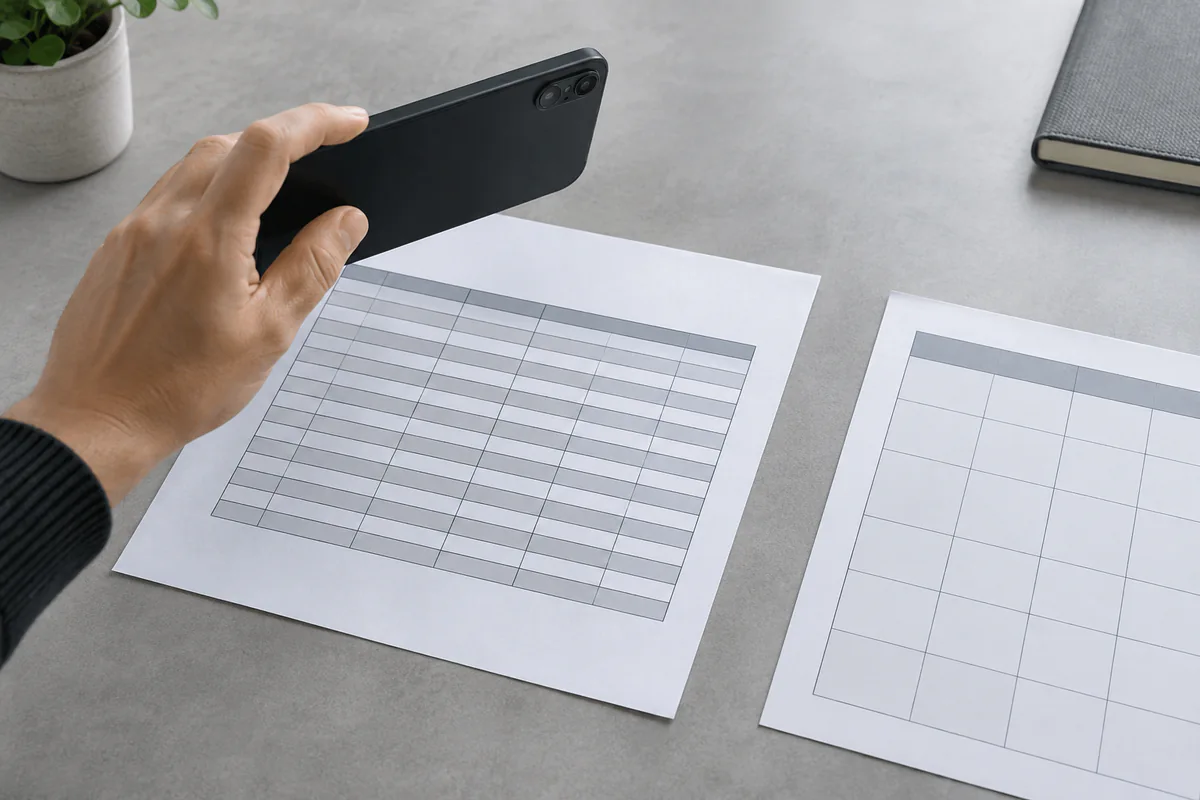
If you have ever needed to extract data from a table that lives inside an image or a non-copyable PDF, you know how miserable it is. Modern AI handles this cleanly:
Here is a screenshot of a table. Extract it into a clean CSV. The first column is the header row. Mark any value you are unsure about with
[?].
You can then paste the CSV into Excel or Google Sheets. The first time you do this on a complicated table, the time saved is meaningful. The “mark unsure values” instruction matters — without it, OCR errors slip through silently.
What image upload is bad at
A short, honest list of where the model is unreliable:
Precise text extraction from low-quality images. Slightly blurry photos, oddly angled documents, very small text. The model will make a confident attempt, but accuracy drops. Always verify if precision matters.
Identifying specific named individuals. Most models will not identify a particular person in a photo, both for accuracy and privacy reasons — Anthropic’s vision documentation, for example, states outright that Claude cannot be used to name people in images and refuses to do so. They will describe what they see.
Counting and measuring. “How many people are in this photo?” or “What is the height of this object?” Models are surprisingly bad at precise counting and measurement. They will guess plausibly. Verify if the answer matters.
Reading medical scans, X-rays, MRI, or other clinical imagery. Models can describe what they see at a high level but should not be used to diagnose anything. Always defer to a clinician.
Anything time-sensitive in a photo. A snapshot of yesterday’s stock chart, a screenshot of a live game, current weather — the model can read what is in the image but does not know if it is current.
The thirty-second privacy checklist
This is where image upload differs from typed text. People who would never paste a piece of customer data into ChatGPT happily upload a screenshot of the same data, because clicking the camera button feels casual. Before uploading anything, run through five questions:
- Does this image contain anyone’s personal information? Names, faces (especially of children), home addresses, ID numbers, license plates, bank account numbers, passport pages, medical details. If yes, crop them out before uploading, or do not upload.
- Does this image contain anything covered by my employer’s data policy? Customer data, internal documents marked confidential, source code from your company’s repos, salary information, anything under NDA. If yes, use your company’s sanctioned AI (Microsoft Copilot with enterprise, ChatGPT Enterprise, etc.) — not your personal account.
- Is the model’s “Improve the model for everyone” setting on? In ChatGPT, this is under Settings → Data Controls (OpenAI’s Data Controls FAQ documents the exact steps). Turn it off as a baseline if you are about to upload anything you would not be comfortable seeing on a billboard. Other tools have similar settings.
- Could this image be screenshotted and leaked from the AI’s logs? Probably no — major providers have decent security — but you cannot guarantee it. Treat any sensitive upload the way you would treat sending it via email: assume it could exist forever.
- Is there a simpler way to extract just the part I need? Often, the answer is yes. A photo of a single line of a contract is much better than a photo of the whole page.
A practical rule: if you would not paste the content of the image as text into the chat, do not upload the image either.
Try this week
Three simple uses to make image upload feel reflexive:
- Photograph a chart from any document you are reading this week and ask the model what it implies.
- Snap a receipt and ask for a structured expense extract.
- Take a screenshot of a slide you are unsure about and ask the model for one round of structural feedback.
After those three, you will start noticing image-upload opportunities everywhere. Just keep the privacy checklist in the back of your mind — it takes thirty seconds and saves a category of problem you really do not want to encounter.